
Instagram Carousel Downloader
Save each photo and video from a public Instagram carousel post.
How to download an Instagram carousel
- 01
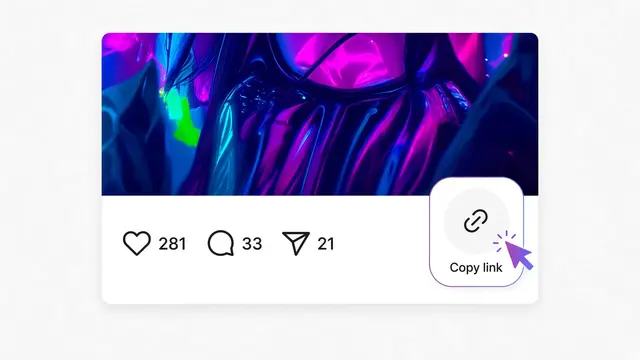
Open the carousel post in Instagram, tap Share, then tap Copy link.
- 02
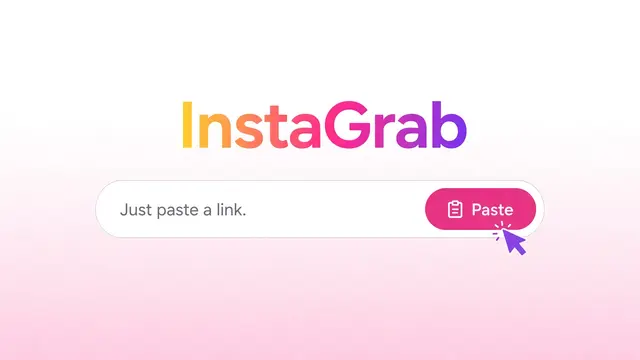
Paste the link into the box above and click Download.
- 03InstaGrab result

 Instagram post1 / 3Save this slide
Each slide gets its own card. Save the ones you want.

Download Instagram carousels
A carousel is one post with several photos or videos. Paste its link and InstaGrab lists every slide as its own card.
Photo slides have a Download photo button. Video slides can be played on the page and have Download video and Download MP3 buttons.
Slides are saved one at a time, so you can keep the ones you want. InstaGrab does not bundle them into a zip file.
Links that work here
Carousels use the /p/ link. These formats are accepted:
https://www.instagram.com/p/SHORTCODE/https://www.instagram.com/p/SHORTCODE/?img_index=3
You can leave off https:// and www. Whichever slide you copied the link from, you get every slide in the post.
What you get
- One card for each slide in the post.
- JPG files for photos and MP4 files for videos.
- Each file is named instagrab_ followed by a random number.
When it will not work
- The account or post is private.
- The post was deleted.
- The link is a profile page, not a link to one post.
FAQ
Can I save all slides at once?
No. Each slide has its own button so you can save the ones you want.
Can a carousel include videos?
Yes. Video slides show Download video and Download MP3.
Why do I get all slides when I copied one?
The link points to the whole post. The img_index part only says which slide was showing.
Are the slides kept in order?
Yes. The cards appear in the same order as the post.
Is it free, and do I need an account?
It is free, and you do not need an InstaGrab account or an Instagram login. You only need the link to a public post.
Where does the file go?
Your browser saves it. On a computer that is usually the Downloads folder. On Android it is usually Downloads as well. On iPhone, Safari may show a share sheet so you can save the file to Files or Photos.
Other InstaGrab tools
- Instagram MP3 DownloaderTurn a public Instagram video or Reel into an MP3, right in your browser.
- Instagram Photo DownloaderSave a public Instagram photo from its link, including carousel slides.
- Instagram Reels DownloaderDownload a public Instagram Reel or video from its link. No sign-in, and no extra steps.
- Instagram Story DownloaderDownload a public Instagram Story from its link while it is still live.